



What Is a GTIN in Google Merchant Center, and When Is It Required?
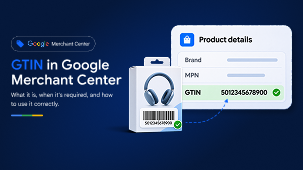
A GTIN (Global Trade Item Number) is a product identifier, usually found beneath the barcode on its packaging. A GTIN in Google Merchant Center should be the manufacturer-assigned number whenever the product has one. If it has never been assigned a GTIN, you should not invent one.
Why does Google use GTINs?
A GTIN is one of the Google Shopping product identifiers that helps Google recognise the exact product being sold, match it with other offers for the same item and show it to relevant shoppers. Missing or incorrect identifiers can limit visibility and, in some cases, lead to product disapprovals.
Where can you find a GTIN?
Look for the GTIN barcode on the product packaging, or check the number on a book cover or in the manufacturer's product information. If you cannot find it, ask the manufacturer or supplier before updating your feed.

Illustration: the GTIN is the number printed with the barcode; use the actual number assigned to your product.
Which GTIN format should you submit?
Common formats include UPC (12 digits), EAN (13 digits), ISBN-13 for books and ITF-14 (14 digits). Google also accepts certain 8-digit identifiers. To meet Google Merchant Center GTIN requirements, submit the complete, correct number in the [gtin] attribute. The Google Merchant Center GTIN must not be replaced with your internal SKU or a number from a similar product.

Illustrative product details view showing the GTIN field — not a live account screenshot.
Common GTIN mistakes to check
-
Using the GTIN for a different colour, size, pack quantity or product variant.
-
Entering a retailer SKU, made-up number or an incorrectly formatted GTIN.
-
Leaving out an assigned GTIN or marking identifiers as unavailable when they exist.
-
Submitting a GTIN with an invalid check digit.
How do you check GTIN issues in the Merchant Center?
Go to Products > Needs attention and filter for GTIN or product-identifier issues. If you see a missing GTIN in Google Merchant Center warning, open the affected product to review the submitted value, then correct the source feed or product data. For multiple affected products, download the issue list and check it against manufacturer data. Changes may take time to appear in diagnostics.

Illustrative Merchant Center issue view — not a live account screenshot.
A quick check before submitting
Does the GTIN belong to this exact product and variant? Is it manufacturer-assigned and complete? Does it match the packaging or supplier data? If no GTIN exists, have you supplied the other identifiers correctly?
At ShoppingIQ, Google Merchant Center feed management includes checking product identifiers alongside feed diagnostics to improve product data accuracy.
Official Google references:
About unique product identifiers
Identifier exists [identifier_exists]
FAQ’s
1. What is a GTIN in Google Merchant Center, and why is it important?
A GTIN (Global Trade Item Number) is a unique product identifier assigned to a product, typically by its manufacturer or brand owner. In Google Merchant Center, a GTIN helps Google identify products accurately, match them with relevant searches and group offers for the same item. Providing the correct GTIN can improve product identification and eligibility for Shopping listings.
2. Is a GTIN required for every product in Google Merchant Center?
No, not every product requires a GTIN. However, if a manufacturer has assigned a GTIN, Google generally requires retailers to submit it. Handmade, custom-made and certain vintage products may not have one. In these cases, retailers should provide other available product identifiers, such as brand and MPN, where applicable.
3. Where can I find the GTIN number for my product?
You can usually find the GTIN printed beneath the barcode on product packaging. It may also be available on the manufacturer's website, product specification sheets or supplier catalogue. Common GTIN formats include UPC, EAN and ISBN-13. Always verify that the number belongs to the exact product and variant you are selling.
4. What should I do if my product does not have a GTIN?
If your product has never been assigned a GTIN, do not create one or use another product's barcode. Instead, submit genuine product identifiers such as brand and MPN when available. If the product has no assigned unique product identifiers, you can use [identifier_exists] = no where appropriate. Do not mark identifiers as unavailable simply because you cannot find them.
5. How do I fix missing or invalid GTIN errors in Google Merchant Center?
To fix missing or invalid GTIN errors, open Google Merchant Center and navigate to Products > Needs attention. Review the affected product and verify its GTIN against manufacturer information. Check for incorrect digits, invalid formatting, mismatched variants, or missing identifiers. Update the original product data source and allow Google time to process the corrections.










No comments yet.